Your Development Journey
This guide will help you get started with development within our GitLab environment. It covers account creation, issue creation, project forking, and submitting a Merge Request (MR).
1. Create a FusionDirectory Account
We have a fully automated process to grant you the necessary permissions for contributing to our projects.
Follow the link below to register:
Once registered, visit our GitLab instance to log in and access projects:
2. Select and Fork a Project
After logging into GitLab, click Projects in the top navigation bar.
Note
The default project is FusionDirectory, available here: FusionDirectory GitLab Project
Click “Explore Projects” to browse available repositories or “Your Projects” to view assigned projects.
Most development work occurs in the fd-plugins section, so navigate there if applicable.
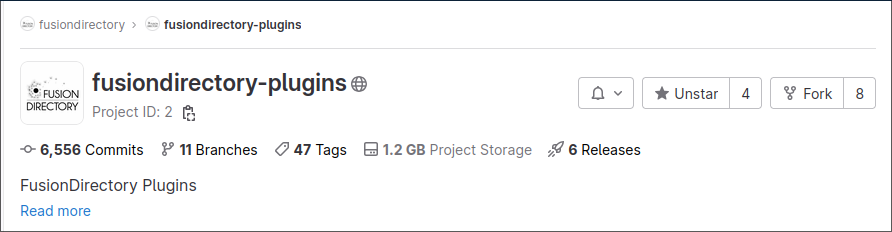
In the top-right corner of the project page, click Fork Project. This will create a copy of the full project within your namespace.
Select the project URL, ensuring your username is included, as shown in the example below. You may change the Project Slug, but we recommend leaving it unchanged.
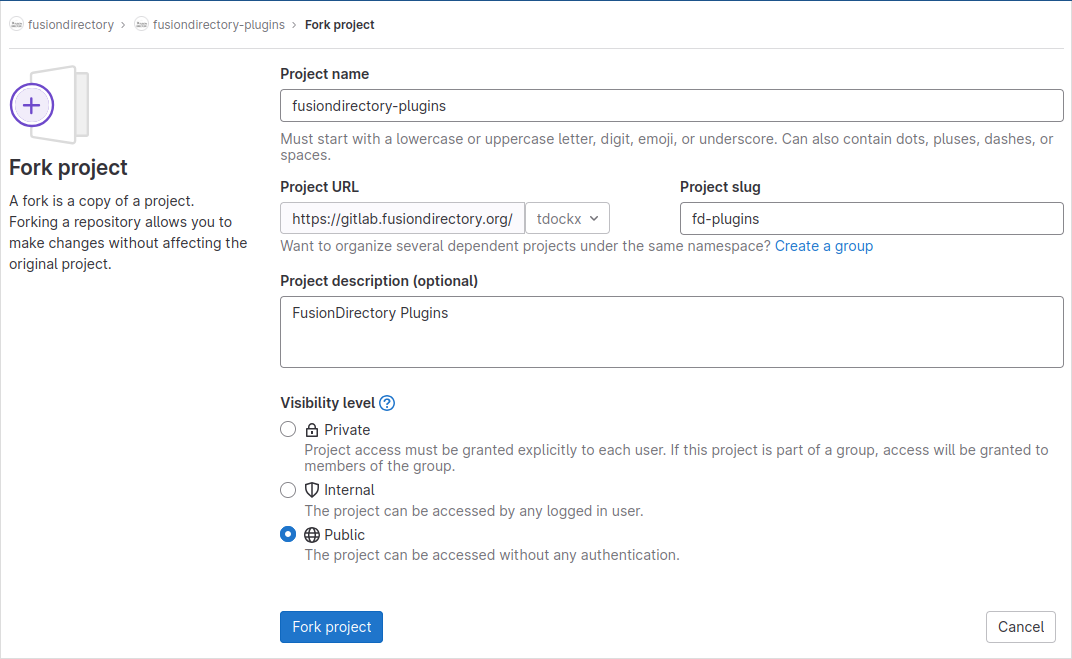
Click Fork Project.
You will be automatically redirected to your personal namespace, where you can modify the project and create your first Merge Request.
3. Create a Development Branch
Now, let’s create a new merge request for your forked project.
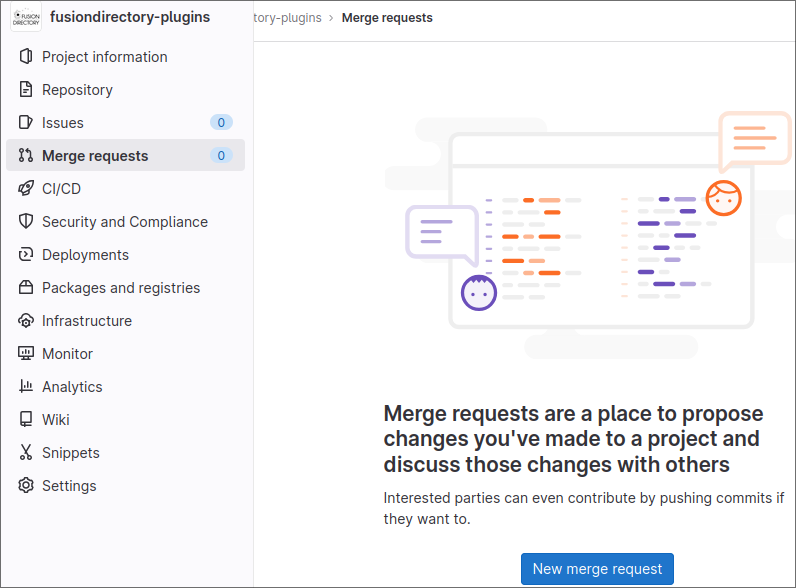
Go to the Merge Requests section in the left sidebar and click “New Merge Request”.
On the new page, ensure the settings are correct:
Source project: Your personal fork ([username]/[project-name])
Target project: The original repository (fusiondirectory/[project-name])
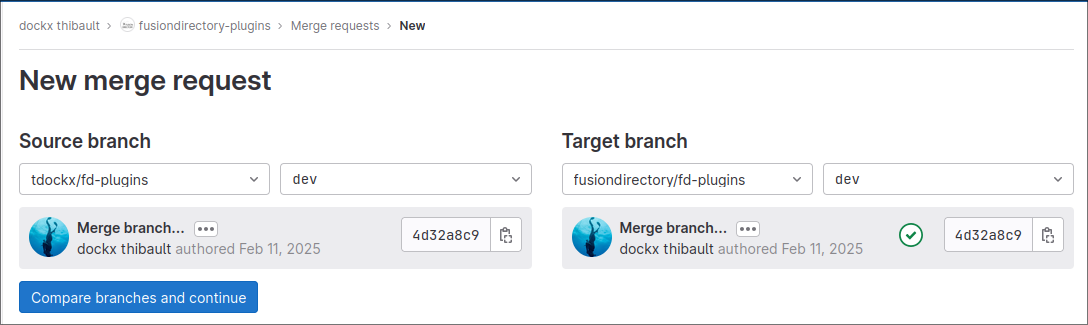
Click Compare Branch and Continue.
In the dialog that appears:
Leave the branch name as suggested. We recommend using the same branch name as the issue title.
Ensure the target branch is the development branch (e.g., dev).

Fill in the optional fields:
Assignee: Assign the MR to yourself.
Reviewer: Assign another contributor or a FusionDirectory developer as a reviewer.
Milestone: Select a milestone if applicable.
Labels: These will be set automatically—leave them unchanged.
Merge options:
Select “Delete source branch when merge request is accepted”, which is the default setting.
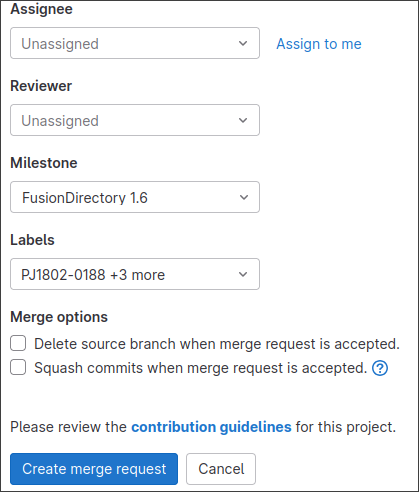
Click Create Merge Request to begin tracking progress.
4. Checkout Your Branch Locally
Once the branch is created, you can start development.
Click the Code button in the top-right corner of the page.
Click Check out branch to view checkout instructions.
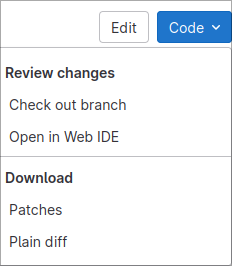
Copy the provided Git command and execute it in your local repository to switch to your branch.
Note
Ensure your new branch is available locally. If not, clone your forked repository before running the above command.
5. Create an Issue on the Origin Project
Once you have completed your development and your Merge Request (MR) is ready, you must create an issue on the original project. This issue will help FusionDirectory developers review your contribution and track its integration into the main codebase.
Steps to Create an Issue
Navigate to the Issues Section - In the project repository, click Issues in the left sidebar. - Click the New Issue button.
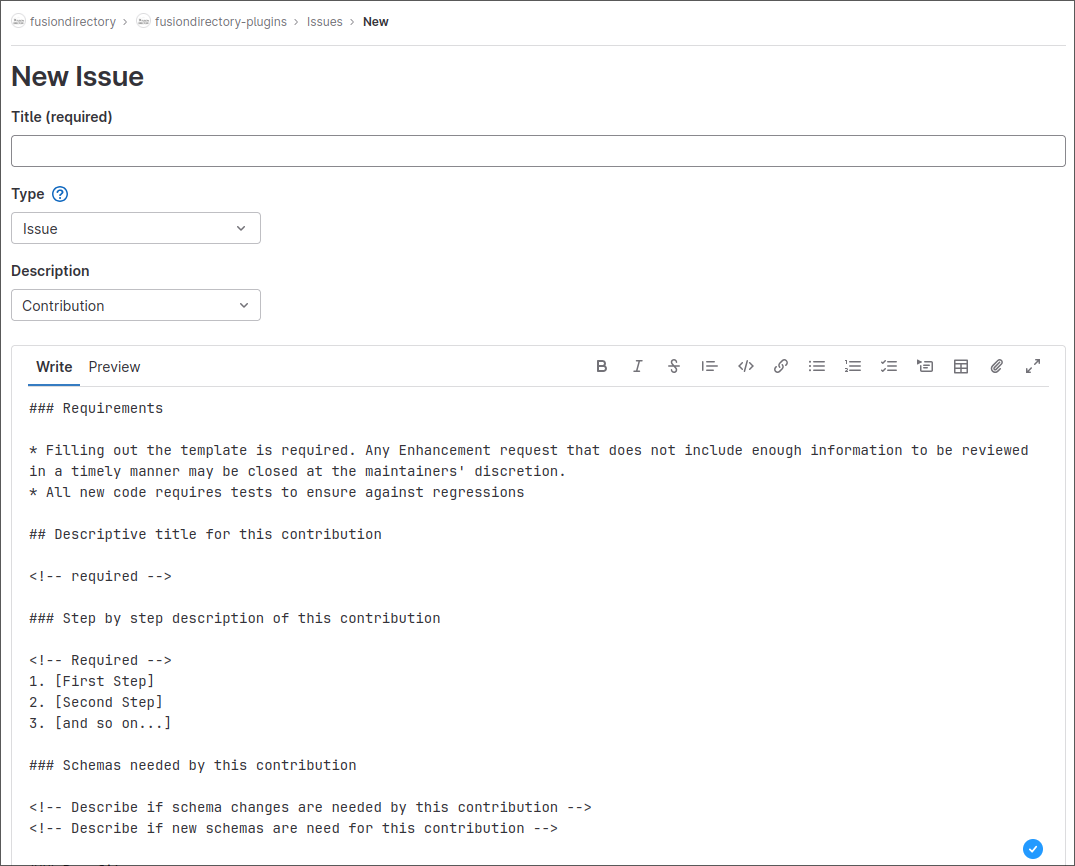
Fill in the Issue Details - Title: Provide a concise and clear summary of the issue. - Description: Explain the feature request or bug fix in detail, including expected behavior. - Template: Use the appropriate issue template (e.g., Contribution), ensuring all sections are properly completed.
Link Your Merge Request - In the Description, include a direct link to your Merge Request from your personal fork. - This allows FusionDirectory developers to easily access and review your changes.
Assign a FusionDirectory Team Member - Assign a FusionDirectory developer to review your issue and code. - This ensures your contribution is processed efficiently.
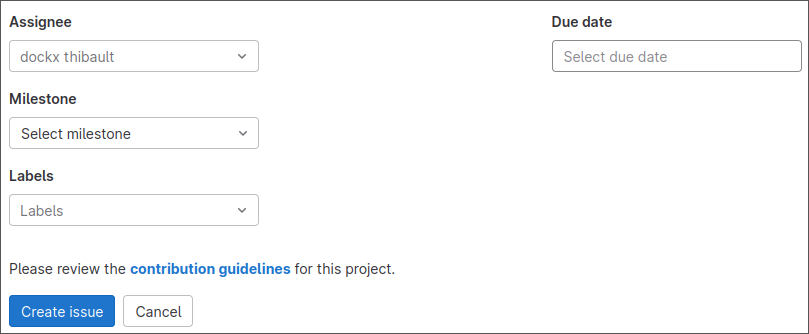
Submit the Issue - Click Submit Issue to create it.
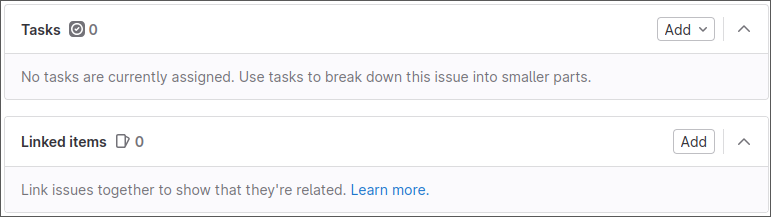
Verify the Linked Merge Request - After submitting the issue, check if your Merge Request is automatically listed in the Linked Items section. - If it is not linked, manually add a reference to your MR in this section.
—
That’s it!
Once a FusionDirectory team member receives a notification of your contribution, they will review your code and discuss any necessary changes using GitLab’s comment section below your open issue.
We look forward to your contributions and innovations!